Enterprise edition
ParaTrace in your own cloud
Run ParaTrace in your organisation's own cloud account. Texts are checked on your own virtual machine and never leave it, and people sign in with their work accounts.
Texts stay with you
Every text is checked on a virtual machine in your own cloud account, and ParaTrace sends nothing to us.
Work accounts
People sign in with their work accounts, and only your organisation's accounts are accepted.
You approve updates
We install updates only while you grant us access, and a version that doesn't start properly rolls back by itself.
Run by your admins
See who uses it and how much, manage API keys, choose how long checks are kept, and download all data.
Choose your cloud
Azure now, AWS and Google Cloud next
Available now
Microsoft Azure
Deploy it from the Azure Marketplace in about 15 minutes. People sign in with Microsoft Entra ID.
Coming soon
Amazon Web Services
An offer in the AWS Marketplace is on its way. Tell us if you'd like to hear when it's ready.
Coming soon
Google Cloud
An offer in the Google Cloud Marketplace is on its way. Tell us if you'd like to hear when it's ready.
How it fits together
Everything runs in your Azure subscription
A managed application, with one virtual machine for the website, the API and the detection model.
Your people
Check texts and PDFs in the browser, over HTTPS, signed in with their work accounts.
Your systems
Call the REST API over HTTPS with personal API keys.
Your Azure subscription
Managed resource group · you see it, nobody changes it
ParaTrace virtual machine · GPU or CPU size
Web server
The website and HTTPS, with a Let's Encrypt certificate, your own or its own. Only ports 80 and 443 are open.
API and detector
Sign-in, checks, history, API keys and the admin pages.
Database
On the virtual machine's disk. You can export it any time.
Detection model
On the virtual machine's GPU, or on its processors.
Microsoft Entra ID
Your tenant. ParaTrace accepts only your organisation's accounts.
Updates from us
Installed only while you approve our access, just in time.
Setup guide · Microsoft Azure
From the Marketplace to the first sign-in in about 15 minutes
The same guide is also a PDF of six pages, to keep or pass on to your Azure administrators.
Before you start
- An Azure subscription in which you may deploy Marketplace applications.
- Someone who can register applications in your Microsoft Entra ID, and grant admin consent if your organisation requires it, such as an Application Administrator.
- For a free, trusted certificate, a virtual machine that can be reached from the internet on ports 80 and 443. For one on your private network only, a certificate from your own certificate authority, or the virtual machine's own (see step 4).
Step 1
Deploy ParaTrace from the Azure Marketplace
In the Azure portal, find ParaTrace Enterprise in the Marketplace and select Create. The form asks for the following.
What to choose when you create ParaTrace Enterprise Field What to enter Basics Subscription, resource group and region. Keep the suggested application and managed resource group names. Virtual machine Its size. Sizes with an NVIDIA GPU, in the NC series such as Standard_NC4as_T4_v3, check texts several times faster. Without a GPU, choose at least 8 vCPUs and 32 GB of memory, such asStandard_D8s_v5. The verdicts are the same either way.Network A new virtual network, or one of yours to reach ParaTrace from your private network. A public IP address with a DNS name ( <name>.<region>.cloudapp.azure.com), or None to keep ParaTrace on your private network. Only ports 80 and 443 are opened.Publisher access Just-in-time access. We ask for access for a limited time when we install an update or help you, and you approve or decline each request. Then review and create. When the deployment is done, the virtual machine starts ParaTrace by itself, and loading the detection model takes a minute or two.
Step 2
Find the setup URL and the setup code
In the Azure portal, open your ParaTrace application and select Parameters and Outputs.
setupUrlis the address of the setup page, for examplehttps://paratrace-1a2b3c4d.westeurope.cloudapp.azure.com/setup.setupCodeis the virtual machine's ID. Only someone who can see the deployment in your Azure subscription knows it, so only you can complete the setup.
Step 3
Register ParaTrace in Microsoft Entra ID
In the Microsoft Entra admin center, go to Applications, App registrations, New registration.
- Name it ParaTrace.
- Under supported account types, choose Accounts in this organizational directory only.
- Add a redirect URI on the Single-page application (SPA) platform,
https://<your domain>/auth/microsoft, with the DNS name from step 1 or your own domain from step 4. - Select Register, then copy the Application (client) ID and the Directory (tenant) ID from the Overview page.
- Under API permissions, make sure Microsoft Graph's delegated permissions
openid,profileandemailare there. If your organisation doesn't let people consent to apps themselves, select Grant admin consent.
No client secret or certificate is needed, because ParaTrace signs people in through the browser. It accepts only accounts of your organisation's directory.
Step 4
Complete the setup page
Open the setup URL. The first time, your browser warns about the certificate, because until the setup is complete the virtual machine uses a certificate of its own. Continue to the page and fill it in.
What to enter on the setup page Field What to enter Setup code The setupCodefrom step 2.Directory (tenant) ID From the app registration's Overview page (step 3). Application (client) ID From the same page. Admins The work email addresses of the people who will manage ParaTrace, one per line. They become admins when they first sign in, and admins can make others admins later. Domain The address people will use, filled in with the DNS name from step 1. For your own domain, first create a DNS record that points at the virtual machine, a CNAME to the DNS name or an A record to its public IP address. Leave it empty to use the virtual machine's IP addresses only. Certificate Automatic (Let's Encrypt) gives a free certificate that renews by itself, as long as the domain can be reached from the internet on ports 80 and 443. This server's own suits a domain that only resolves inside your network. Browsers warn until your devices trust its root certificate, which the page offers for download. With your own certificate, you upload the certificate with its chain and its private key, both PEM, for example from your organisation's certificate authority. Email for Let's Encrypt Optional. Let's Encrypt writes there about certificate problems. Delete checks after (days) How long checks made on the website are kept, with their texts. 0 keeps them until their owner deletes them. Checks made through the API are never stored. 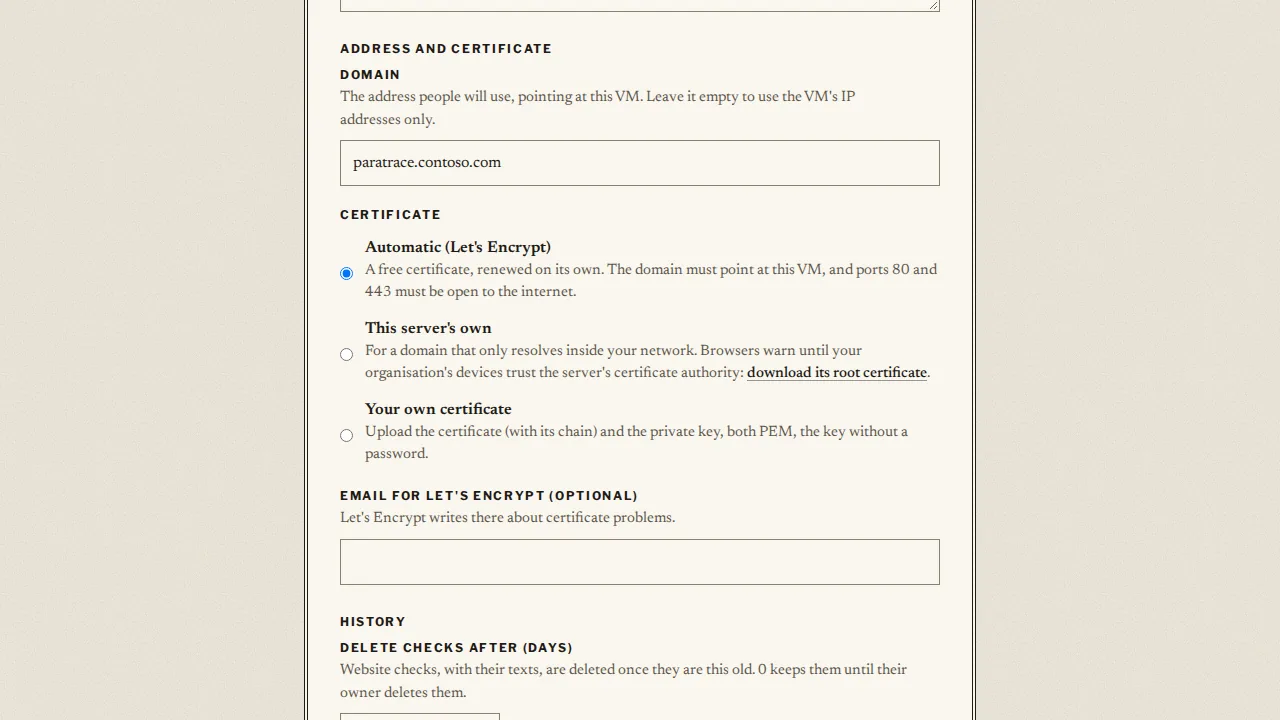
The setup page, with the domain and the certificate. Select Complete setup. The page then shows the redirect URIs to check in your app registration, and a recovery code.
Save the recovery code now, for example in your organisation's password vault. Together with the setup code, it opens the setup page again if nobody can sign in, for example after a wrong tenant ID. It is shown only once, and admins can issue a new one later under Admin → Settings.
Step 5
Sign in and manage ParaTrace
Open
https://<your domain>/and sign in with Microsoft. Everyone in your organisation can sign in the same way, and their account is created at their first sign-in. Admins find four sections on the Admin page.- People.
- Who uses ParaTrace and how much. Make admins and switch accounts off.
- Usage.
- Checks, documents and words per day, on the website and through the API.
- API keys.
- Everyone can create one key for your own systems, and admins can switch keys off.
- Settings.
- The values from step 4, a new recovery code, and Download all data.
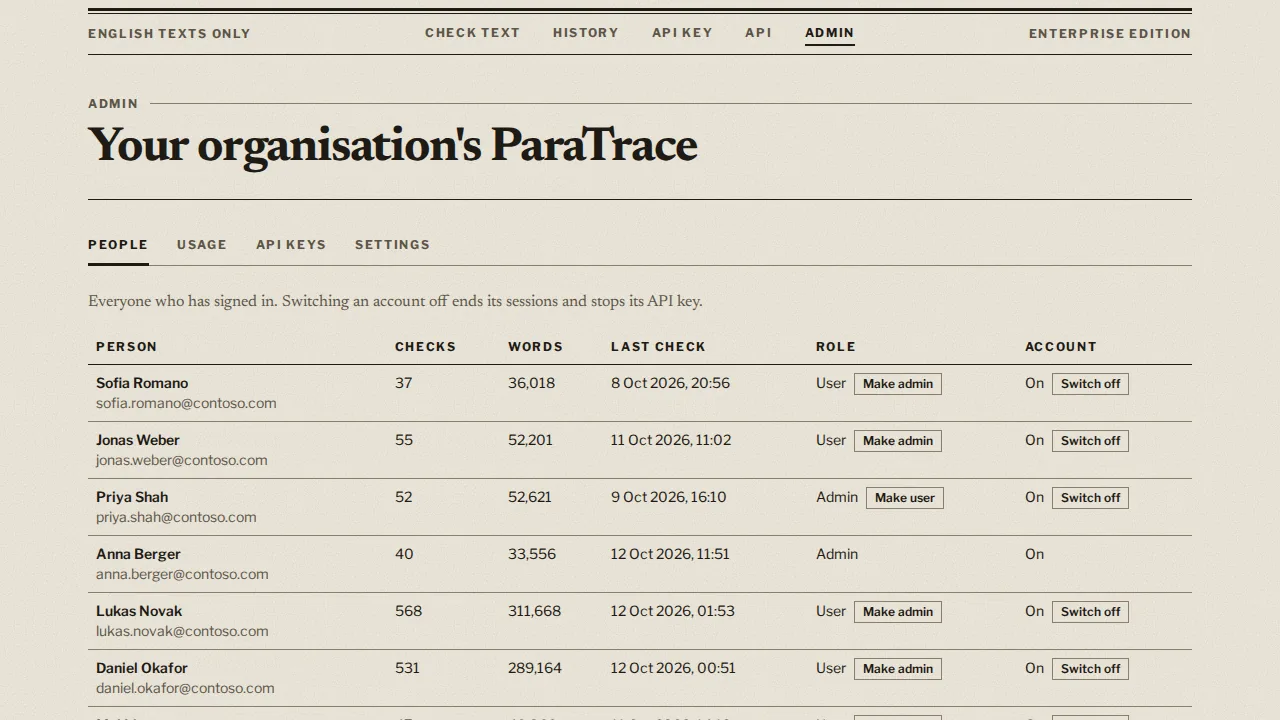
The Admin page, with the people of your organisation and their use. Step 6
Connect your own systems
Each person creates their key on the API key page and sends it with every call as a Bearer token in the Authorization header. The API reference is at
https://<your domain>/docs.Check a text curl -X POST https://<your domain>/v1/api/detect \ -H "Authorization: Bearer <key>" \ -H "Content-Type: application/json" \ -d '{"text": "The text you want to check ..."}'
Good to know
Running ParaTrace Enterprise
- Your texts stay on the virtual machine.
- ParaTrace sends nothing to us. The virtual machine connects only to Microsoft's sign-in service, to Let's Encrypt for automatic certificates, to Ubuntu's update servers and, during an update you approve, to our container registry.
- Updates.
- We ask for just-in-time access, and you approve it in the Azure portal, under your application's JIT access. An update takes a few minutes. If the new version doesn't start properly, the previous one comes back by itself.
- Nobody can sign in?
- On the sign-in page, select Nobody can sign in, reopen the setup page, and enter the setup code and the recovery code. Everyone is signed out, and people, API keys and history stay.
- Your data.
- Admin → Settings → Download all data gives everything ParaTrace keeps as one ZIP file. Deleting the application in Azure deletes the virtual machine and everything on it.
- What the verdicts mean.
- ParaTrace estimates whether a text was written by AI, and it is not proof of authorship. It checks English texts. At the strict setting about 1 in 100 human texts in our tests is flagged, and at the lenient setting about 5 in 100. See the benchmark report.
Questions, a trial or another cloud?
Write to us and we'll help you set it up, or tell you when AWS and Google Cloud are ready.